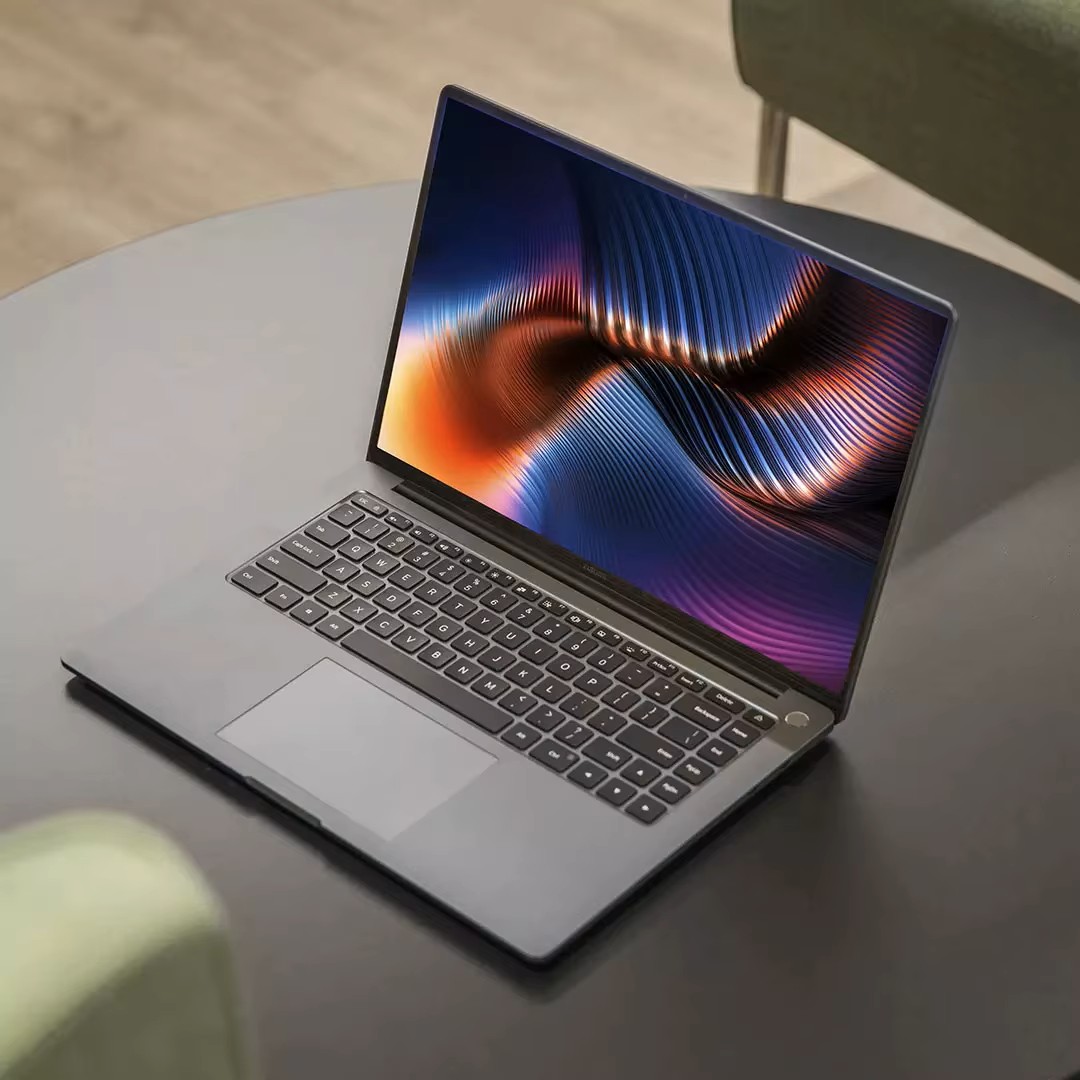
What to Do When Your Xiaomi Laptop Can’t Connect to Bluetooth
Bluetooth is one of those features you don’t think about—until it stops working. Whether you’re trying to connect wireless headphones, a mouse, or transfer files, a broken Bluetooth connection can be frustrating. If you’re using a Xiaomi laptop and suddenly find that Bluetooth won’t connect, don’t worry. This guide walks you through practical steps to fix the issue and get your devices talking again.
Start with the obvious: is Bluetooth actually turned on?
It sounds basic, but it’s the first thing to check. On most Xiaomi laptops running Windows, you can:
- Click the Bluetooth icon in the taskbar or go to Settings > Devices > Bluetooth & other devices
- Make sure the toggle is set to “On”
- If you don’t see the toggle, your Bluetooth driver may be missing or disabled
Also, check Airplane Mode—if it’s on, Bluetooth will be off too.
Try these quick fixes before diving deeper
If Bluetooth is enabled but still not working, try the following:
- Restart your laptop: A simple reboot can fix temporary glitches
- Remove and re-pair the device: Go to Bluetooth settings, remove the device, and reconnect
- Check battery levels: Low battery on your headphones or mouse can prevent pairing
- Use the troubleshooter: In Windows, search for “Bluetooth troubleshooter” and follow the prompts
Dig into driver and hardware issues
If the problem persists, it might be deeper than a simple toggle. Xiaomi laptops use Intel or Realtek Bluetooth modules, and outdated or corrupted drivers can cause failures. Here’s what to do:
- Open Device Manager and expand Bluetooth
- Right-click your Bluetooth adapter and choose Update driver
- If that doesn’t help, uninstall the driver and restart your laptop—Windows will reinstall it automatically
- Visit Xiaomi’s official support site to download the latest drivers for your model
Some users report that after a Windows update, Bluetooth stops working until the driver is manually reinstalled. This is especially common on models like the Xiaomi Notebook Pro 15 or RedmiBook 14.
Consider external factors and advanced fixes
Sometimes the issue isn’t your laptop—it’s interference or compatibility. For example:
- USB 3.0 ports can interfere with Bluetooth signals. Try unplugging nearby USB devices
- Third-party antivirus software may block Bluetooth services
- BIOS settings: In rare cases, Bluetooth can be disabled at the BIOS level. If you’re comfortable, check your BIOS settings during startup
If you’ve recently installed new software or changed system settings, consider rolling back or restoring to a previous point.
Keep your system healthy to avoid future issues
Bluetooth problems are often a symptom of broader system instability. To prevent future headaches:
- Keep Windows and drivers updated
- Avoid installing unknown Bluetooth utilities or drivers from unofficial sources
- Use Xiaomi’s built-in system diagnostics or apps like Mi Smart Manager to monitor hardware health
- If Bluetooth fails repeatedly, consider using a USB Bluetooth dongle as a backup
With regular maintenance and smart troubleshooting, your Xiaomi laptop should stay connected and reliable.